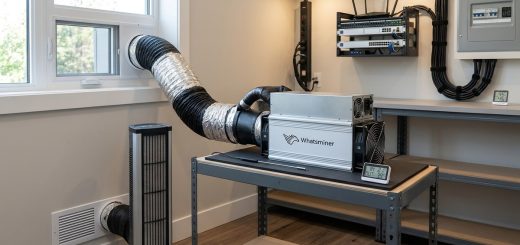
Step-by-Step Guide to Flashing Custom Firmware on Your Whatsminer M50 Series
Flashing custom firmware on your Whatsminer M50 Series might seem intimidating at first. But with the right steps, you can upgrade your miner’s capabilities, fix bugs, and add new features. Whether you want better efficiency, enhanced security, or just the latest updates, this guide walks you through every part of the process clearly. Let’s get your mining hardware running at its best with confidence and ease.
Flashing custom firmware on your Whatsminer M50 Series involves a few clear steps, including preparing files, connecting your miner, and safely updating the system. Following best practices reduces risks and ensures your hardware performs optimally with the latest features and security improvements.
Understanding the importance of firmware updates
Firmware acts as the brain of your mining hardware. It controls how your Whatsminer M50 communicates, performs, and stays secure. Manufacturers often release firmware updates to fix bugs, improve efficiency, or add new features. Custom firmware, in particular, can unlock hidden potential, optimize power consumption, or enhance stability. Knowing how to flash firmware properly can extend your miner’s lifespan and maximize profitability.
What you need before flashing your Whatsminer M50
Before diving into the flashing process, gather these essentials:
- A reliable computer with an internet connection
- The latest firmware files from trusted sources
- The appropriate flashing tool, such as WhatsminerTool or similar software
- A stable power supply for your miner
- Ethernet cable to connect your miner directly to the network
- Backup of current firmware or settings in case recovery is needed
Having these ready helps streamline the process and minimizes risks.
Step-by-step guide to flashing custom firmware on your Whatsminer M50
Follow these clear steps for a smooth update:
-
Download the firmware files
Visit the official manufacturer or trusted community sources to get the latest custom firmware compatible with your Whatsminer M50. Always verify file integrity and authenticity to avoid corrupted or malicious files. For detailed firmware versions, check out the microBT firmware repository. -
Connect your miner to your computer
Use an Ethernet cable to connect your Whatsminer directly to your router or network switch. Ensure your computer and miner are on the same local network. Power off the miner before connecting, then power it back on after setup. -
Access the miner’s web interface
Find your miner’s IP address via your router’s device list or use network scanning tools. Enter this IP into your browser to reach the Whatsminer’s admin panel. Log in with your credentials. If you haven’t changed defaults, consult the user manual for factory login info. -
Backup current settings
Before proceeding, always save your current configuration. Many miners allow exporting settings through the web interface. This step ensures you can restore your setup if needed. -
Upload the firmware
Use the firmware upgrade option in the web interface. Select the downloaded custom firmware file. Confirm the upload process, and do not disconnect power or close the browser during flashing. This step is crucial to prevent bricking your device. -
Wait for the process to complete
The flashing process might take a few minutes. Your miner may reboot automatically once finished. Do not interrupt or power off during this time to avoid firmware corruption. -
Verify the update
Log back into the web interface once rebooted. Confirm the firmware version matches the new file. Run a quick test to check stability and hash rate. Adjust settings if necessary to optimize performance.
Expert Tip: Always ensure your firmware files are from reputable sources. Using unofficial or corrupted files can damage your hardware or cause stability issues.
Common mistakes to avoid during firmware flashing
| Mistake | Consequence | How to prevent it |
|---|---|---|
| Using incompatible firmware | Bricking the device | Double-check compatibility before downloading |
| Power loss during flashing | Firmware corruption | Use a stable power supply and avoid interruptions |
| Skipping backups | Data loss or configuration issues | Always export current settings first |
| Interrupting the process | Bricking or unstable performance | Wait patiently for completion before proceeding |
| Flashing from untrusted sources | Malware or bricked miner | Download only from official or trusted sites |
Benefits of flashing your Whatsminer M50 firmware
Updating your firmware unlocks several advantages:
- Increased hash rate and efficiency
- Improved security against vulnerabilities
- Compatibility with new mining pools or algorithms
- Fixes for bugs or operational glitches
- Access to the latest features and optimizations
Keep in mind that custom firmware can sometimes offer more control over power management, temperature regulation, and remote monitoring.
Final thoughts on maintaining your mining hardware
Regularly updating your Whatsminer M50 firmware can significantly boost your mining operation’s stability and profitability. Always follow manufacturer instructions and best practices to prevent issues. If you encounter problems, restoring from backups or seeking help from the community can save you time and hardware costs.
Maintaining your hardware’s health is key to long-term success. Keep your firmware current, monitor device temperatures, and ensure your power supply remains reliable. This proactive approach helps you stay ahead in the competitive mining landscape.
Keep your mining game strong with proper firmware management
Flashing custom firmware on your Whatsminer M50 Series is a straightforward process once you understand the steps. By preparing your files, connecting properly, and following safe procedures, you can unlock new levels of performance and security. Remember, patience and attention to detail are your best tools. Apply these tips confidently, and your mining hardware will serve you well for years to come.