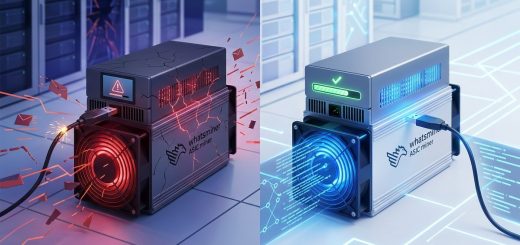
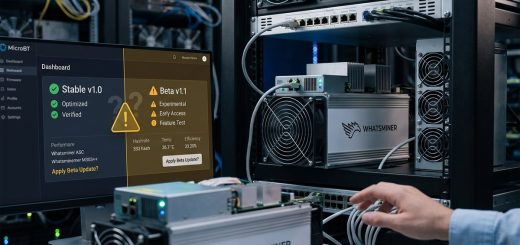
Understanding Whatsminer Developer Mode and Advanced Firmware Configuration Options
Getting the most out of your Whatsminer hardware requires more than just plugging it in. Advanced users and seasoned miners often tap into developer mode and firmware customization to fine-tune performance, troubleshoot problems, and unlock hidden features. This guide walks you through the essentials of Whatsminer developer mode and firmware configuration, helping you harness the full power of your mining rigs with confidence and precision.
Activating Whatsminer developer mode and customizing firmware settings can significantly improve mining efficiency, facilitate troubleshooting, and enable advanced control over your hardware, ensuring optimal performance and longevity.
Understanding Whatsminer Developer Mode and Its Benefits
Whatsminer developer mode is a special firmware setting that grants advanced access to hardware features typically hidden during normal operation. Enabling this mode allows users to tweak performance parameters, run diagnostics, and test new firmware versions. The main advantages include improved control over hash rate adjustments, temperature management, and power consumption. It also simplifies troubleshooting issues like connection drops or overheating.
Activating developer mode isn’t just for tech experts. Enthusiasts seeking to maximize hardware efficiency and technicians aiming to diagnose hardware issues find this feature invaluable. It provides a window into the miner’s internals, making fine-tuning and problem-solving more straightforward.
How To Enable Developer Mode on Whatsminer
Activating developer mode involves a few key steps that vary slightly across different models. Here’s a straightforward process to get started:
- Access the Web Interface
- Connect your miner to your network.
- Enter its IP address into a browser to access the web admin panel.
-
Login using your admin credentials.
-
Backup Configuration Files
- Before making any changes, download and save the current firmware settings.
-
This ensures you can revert if something goes wrong.
-
Enter Developer Mode
- Locate the firmware version section.
- Some models require flashing a special firmware that includes developer mode options.
- Download the appropriate firmware from the official MicroBT site or trusted sources.
- Follow the flashing instructions carefully to avoid brick risks.
- Once flashed, reboot your miner.
- You should see additional options or features in the interface indicating successful activation.
Expert Tip: Always use firmware from official or reputable sources to avoid security issues or hardware damage. For detailed firmware download links, consult the manufacturer’s support site.
Firmware Configuration Options for Optimization
Once developer mode is enabled, you gain access to various firmware settings to optimize your miner. These include:
-
Clock Speeds
Adjust core and memory clocks for better hash rates or lower power consumption. Overclocking can boost performance but risks overheating. -
Voltage Settings
Fine-tune voltage levels to improve efficiency or stabilize operation under overclocked conditions. -
Fan Speed Control
Manually set fan speeds to manage temperatures, especially in high-temperature environments. -
Power Limitations
Set power caps to control energy costs and thermal output without sacrificing too much hash power. -
Pool and Network Settings
Customize pool failover options, network latency optimizations, and remote management features. -
Firmware Features
Enable or disable advanced features like debug logging or custom mining algorithms.
Practical Steps to Configure Firmware Settings
To adjust these options:
- Log into your miner’s web interface.
- Navigate to the firmware or advanced settings tab.
- Modify parameters carefully, noting the recommended limits for your specific model.
- Save settings and reboot the miner to apply changes.
- Monitor performance and temperature readings during operation.
Common Techniques and Mistakes to Watch Out For
| Technique | Description | Common Mistake | Impact |
|---|---|---|---|
| Overclocking | Increasing clock speeds for higher hash rates | Pushing beyond safe voltage limits | Overheating, hardware damage |
| Voltage Tuning | Adjusting voltage for efficiency | Setting voltage too low or high | Instability or component stress |
| Fan Speed Adjustment | Managing cooling manually | Not matching fan speeds to temperature | Overheating or excessive noise |
| Firmware Flashing | Installing custom or updated firmware | Using unverified firmware | Bricking device or security risks |
| Network Optimization | Fine-tuning pool and network settings | Ignoring latency issues | Reduced uptime or share rejection |
For optimal results, follow the table below to avoid common pitfalls:
| Mistake | Consequence | Solution |
|---|---|---|
| Overclocking without proper cooling | Overheating, reduced lifespan | Upgrade cooling system, monitor temps |
| Using unsupported firmware | Bricking miner | Download firmware from official sources |
| Ignoring thermal readings | Hardware failure | Regularly check temperature logs |
| Not backing up configs | Difficult recovery | Always save current settings |
Troubleshooting and Fine-Tuning Your Whatsminer
Enabling developer mode can sometimes introduce issues like instability or overheating. Here are expert tips to troubleshoot:
-
Monitor Temperature and Hashrate
Use the interface’s real-time data to watch for overheating or drops in performance. -
Gradually Adjust Settings
Make small changes and test stability before increasing overclocking or voltage. -
Use Diagnostic Tools
Run self-tests or logs to identify hardware faults or software bugs. -
Revert to Default Firmware
If issues persist, flashing back to the factory firmware can help restore stability.
Remember, patience is key. Small increments in configuration changes prevent accidental damage and ensure consistent performance gains.
Best Practices for Firmware Management
-
Keep Firmware Updated
Regular updates from the manufacturer include security patches and performance improvements. -
Document Changes
Keep a log of firmware versions and settings for easy troubleshooting. -
Avoid Unsupported Customizations
Use only firmware versions recommended by MicroBT unless you are experienced. -
Schedule Maintenance Windows
Perform firmware upgrades during low-stakes periods to prevent downtime.
Unlocking Hidden Potential Through Firmware Tuning
Custom firmware settings and developer mode don’t just improve raw hash rates. They also help extend hardware lifespan, reduce power costs, and improve stability. For example, fine-tuning fan speeds and voltage can prevent overheating during long mining sessions. Adjusting power limits can help in regions with high electricity costs.
Professional miners often experiment with different configurations on spare units before deploying them at scale. This approach minimizes risks and maximizes returns.
Keeping Your Mining Hardware Running Smoothly
Regularly revisit your firmware and hardware settings to adapt to changing conditions. Whether it’s improving efficiency, troubleshooting issues, or testing new features, developer mode provides the control you need. Remember, always back up your configuration before making significant changes.
Optimizing Your Whatsminer for Long-Term Success
By understanding how to activate developer mode and configure firmware options, you gain the ability to tailor your mining setup precisely. This not only boosts your earnings but also extends the lifespan of your hardware. Take your time to learn each setting, test carefully, and stay updated with the latest firmware releases.
Mining is a constantly evolving game. Staying ahead involves regular adjustments and learning from experience. Your efforts in mastering firmware configuration and developer mode will pay off with more stable, efficient operation and greater profitability. Keep experimenting responsibly, and your mining operation will stay competitive for years to come.